Quick Start
Watchkeeper takes a minute to set up. Download the installer for your system, install it, and open it.
Open a Site
Type an address in the bar at the top and press Enter. You can leave out the https://, so example.com works. The page loads on the left, and the panel on the right starts filling in straight away.
You can also start Watchkeeper with a site from the command line:
watchkeeper example.com
Back, Forward and Reload are the three buttons beside the address bar. Links that try to open a new window open in the same page instead.
Read the Panel
The big number at the top is how many other sites the page has told about your visit, and the list under it names them. A site here means a registrable domain, so cdn.example.com and www.example.com both count as example.com.
Under the list:
- Addresses requested counts every distinct address the page asked for, without query strings, and how many of them were on other sites.
- Cookies come from the engine’s own cookie store, so they include the ones scripts can’t see.
- Storage writes are keys the page saved on your computer, and how many came from frames that belong to other sites.
- Fingerprinting reads name each kind of read and the site whose script made it, such as “canvas by adnetwork.example”.
- Workers started counts background scripts the page started.
If a page does more than Watchkeeper can count, a warning line says how much it left out. The list of other sites stays complete even then.
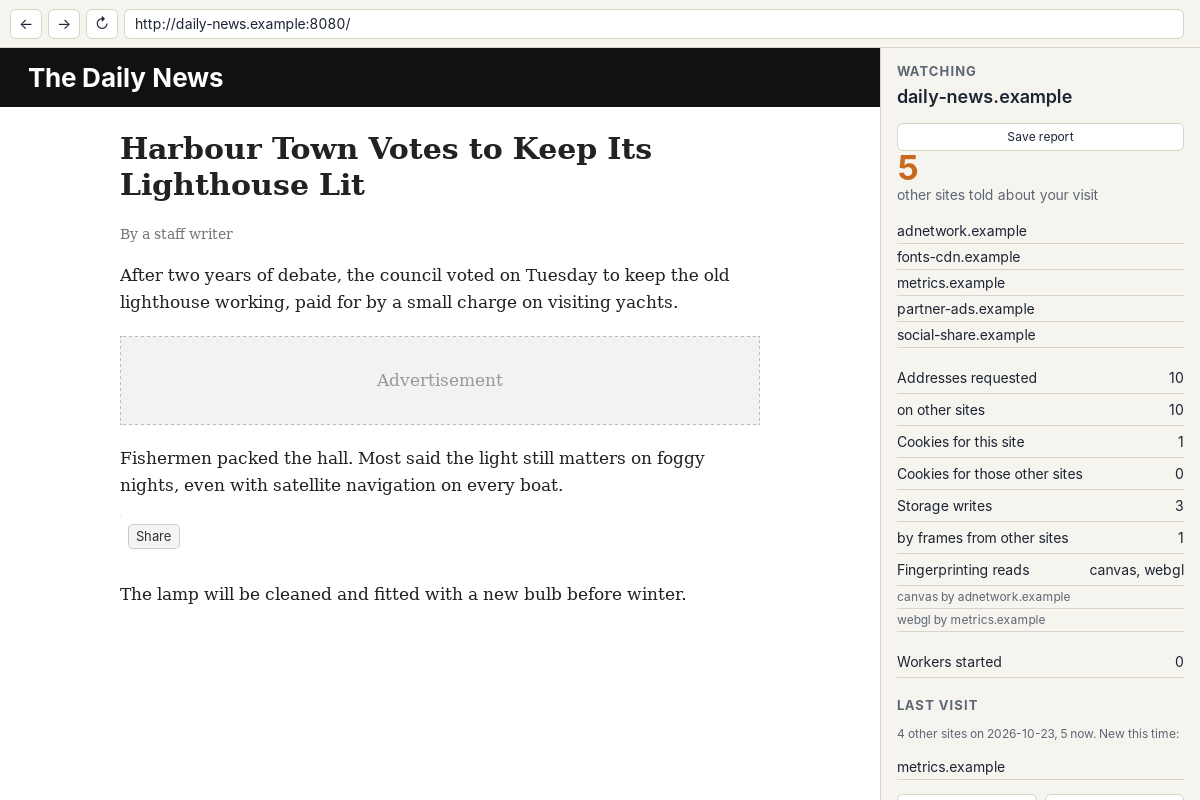
A test page served on the same machine, on its second visit.
Compare With Last Time
On a second visit to a site, the Last visit section shows the date of the first, how many other sites it contacted then and how many now, and which sites are new. Forget this site removes the record for the site in the window, and Forget all removes every record.
Save a Report
Save report writes two files about the site in the window to your Downloads folder: an HTML page you can open in any browser and a JSON file for tools. The panel then says what it saved and where. A report is a good thing to attach to a bug report, or to send to a site’s owner.
Close It
Closing the window ends the session. Cookies, storage and the page’s own history are deleted. The short per-site record stays unless you start Watchkeeper with --no-history.